| iMac G4 and iPhone 5 | iTunes Screenshots |
|---|---|
|
|
Table of Contents
Overview
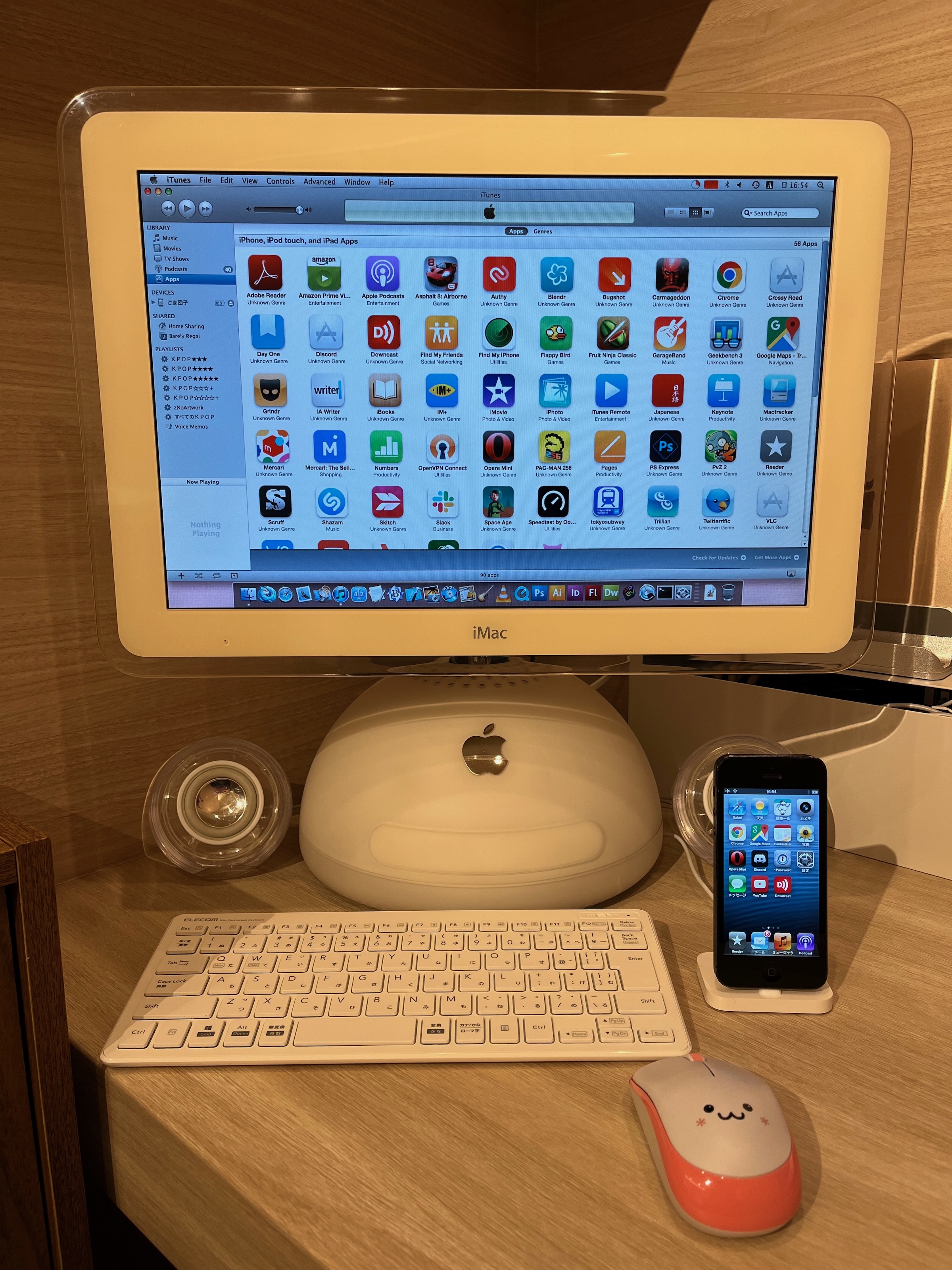
In this article, I will briefly show you how to get an iPhone 5 to sync with any Mac running Mac OS X 10.5.8, and yes, this includes PowerPC Macs. Syncing the iPhone 5 with PowerPC Macs was never possible because Apple restricted the iPhone 5 to Mac OS X 10.6.8 or higher.
TL;DR
When the iPhone and iTunes communicate with each other, they do a handshake involving a lot of property list (PLIST) XML passing. iTunes will start key exchanges and then the iPhone will send a large PLIST payload that explains the capabilities of the device such as the supported languages/regions, sync features, and, most importantly, the minimum version of iTunes required by this iPhone. This part of the PLIST is stored in the key “MinITunesVersion.” iTunes then checks this key and if the value is larger than the current version, iTunes will display an error saying which version of iTunes is required. Most importantly, this key is not present when the iPhone 4s and iTunes do their handshake.
So to bypass this check, all we need to do is change the “MinITunesVersion” string hard-coded into the iTunes binary to anything else and iTunes will then check for a key that does not exist in the PLIST XML provided by the iPhone and then iTunes will happily not display an error and bring you straight to the normal syncing screen in iTunes.
Tutorial
- Download your favorite binary hex editor for your PowerPC Mac, such as Hex Fiend (Macintosh Repository, Macintosh Garden)
- In Finder, click Go→Go to Folder and type in
/Applications/iTunes.app/Contents/MacOS - Back up the iTunes binary by right-clicking on it and choosing “Compress”
- Open the iTunes binary in the hex editor
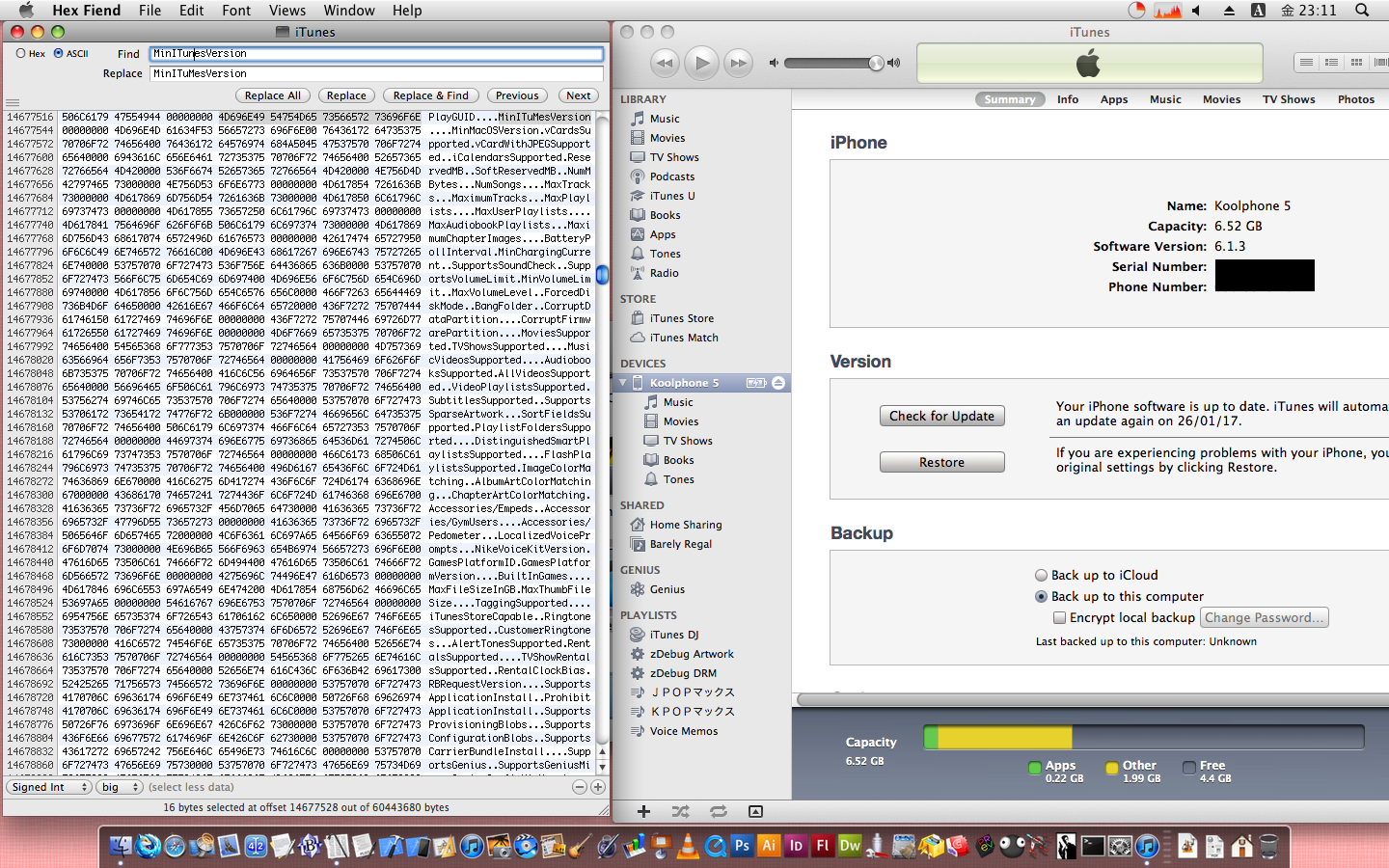
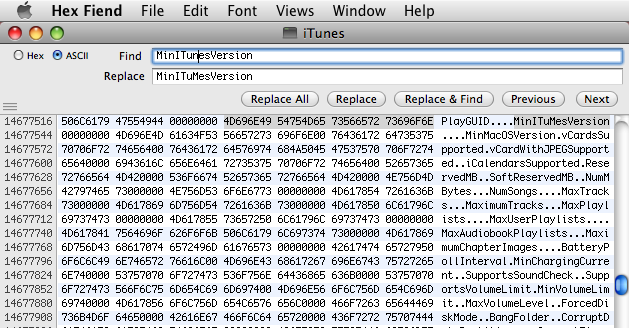
- Search for the string “MinITunesVersion” (there should only be 1)
- Change it to literally anything else
- I changed mine to “MinITuMesVersion”
- Save the changes
- Relaunch iTunes; you’re good to go
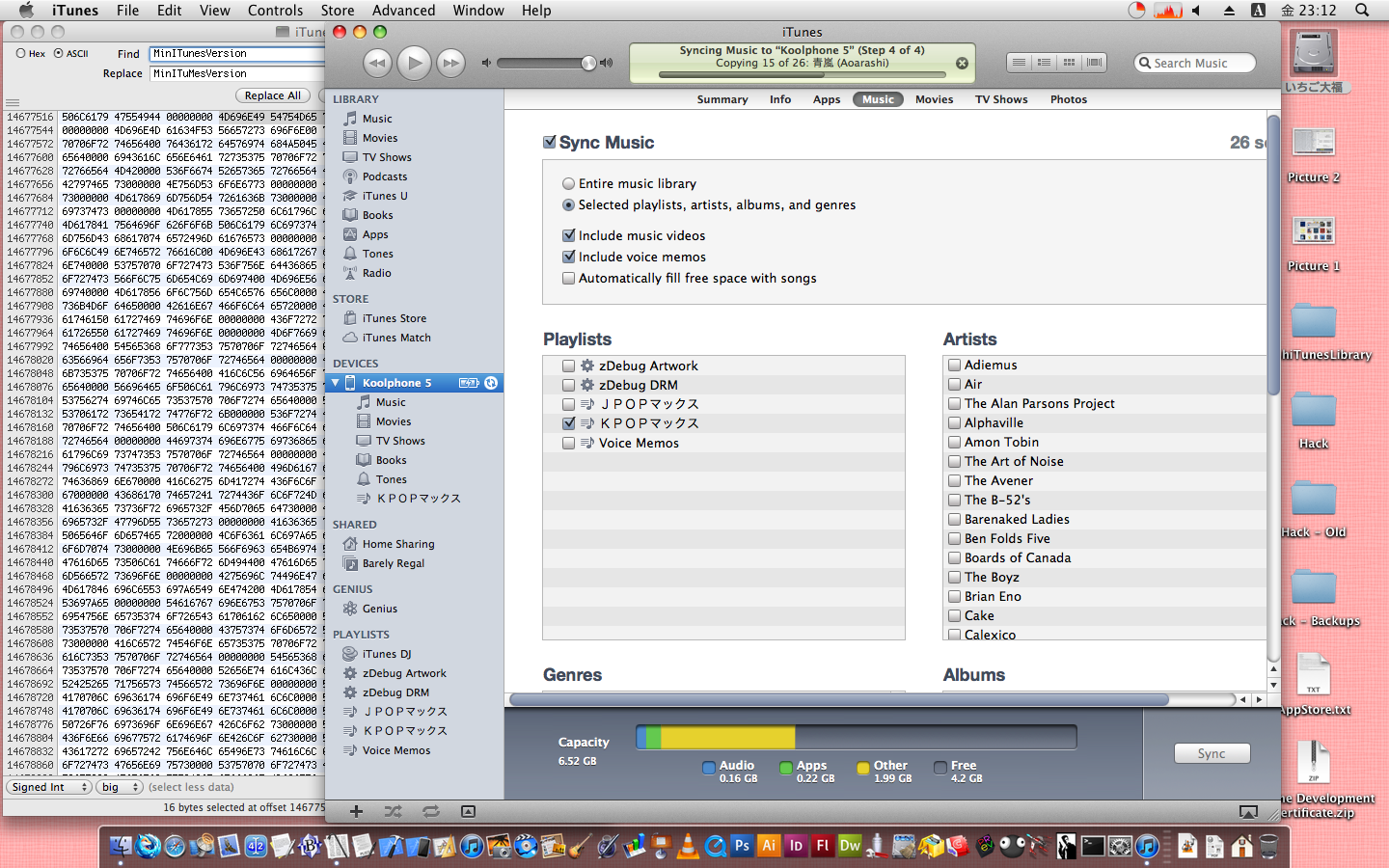
With this approach, I have been able to sync Apps, Music, Podcasts, iPhoto, and Videos. Even the feature that allows you to rearrange your home screen from iTunes works fine.
Caveats
- This is a hack and may not work properly: hacker beware
- After performing this hack, iTunes forcefully exits when trying to play
any video. VLC has way better video playback performance so this is not a
problem for me.
- I assume there is some sort of checksum iTunes checks before it tries to play video to protect DRM-protected content, but I have not tried to troubleshoot this yet.
- This might work for iPhone 5s and others but I have not tried
- This may not work on newer versions of iOS. I was using iOS 6.1.3 but if your
iPhone 5 is running a newer version, this may not work.
- I confirmed this does not work if the iPhone is running iOS 10. I have not yet tested on iOS 8.
Background
You may or may not remember, but when the iPhone 5 was released, its official minimum system requirement was Mac OS X 10.6.8 Snow Leopard or newer. This of course ruled out the ability to sync your iPhone 5 with a PowerPC Mac as those only ran Mac OS X 10.5.8 Leopard at most. Given that Mac OS X 10.6 Snow Leopard was released in August 2009 and the iPhone 5 was released in 2012, this seems like a reasonable cutoff, especially in the fast-moving world of technology back then.
If you Google this problem, you will find that there are many people online (well, online back in 2012) complaining about this limitation and others confidently making the wrong assertion that this is because of the switch from the 30-pin dock connector to the Lightning connector. However, I was extremely suspicious of this because when I open iTunes 10.6.3 and plug in the iPhone 5, iTunes immediately shows a very nice error that says iTunes 10.7 is required. Furthermore, the iPhone 5 shows up in Xcode! Xcode won’t deploy to the device because iOS is too new, but it shows up and it can see it’s an iPhone 5 and which iOS version it’s running. So I knew that this Lightning issue was not true; clearly, the iPhone was communicating with the Mac even over Lightning.
Given that my iPhone 5 and my iPhone 4s were both running iOS 6.1.3 and one of them would happily sync with iTunes 10.6.3 while one would not, I knew this limitation was artificial. And so began my first reverse-engineering project: Figure out this artificial limitation and eliminate it.
But Why
Why did I spend so much time getting my iMac G4 to sync with an iPhone 5? The answer is that I want to try to use an iOS 6 iPhone as my main iPhone in
- What does that mean? Does that mean I won’t have a backup modern iPhone? No, of course I will. It’s not possible to survive in the world without a semi-modern mobile phone. But it will be my backup. I only have a few apps I use on my iPhone and I think I can recreate them for iOS 6 without much issue. But more on that later.
But why not use my iPhone 4s; it’s running iOS 6 as well. Well, the iPhone 5 is the newest iPhone that can run iOS 6, so the performance is much better, and it has 1 GB of RAM which seems insane to me. But more importantly, the iPhone 5 has a widescreen display. Given so much of what I do on the iPhone is YouTube, the lack of widescreen is kind of killer. Also, the iPhone 5 can join 5 GHz Wi-Fi networks, and it has a Lightning connector. Lightning cables are so important because they are plentiful, and I can charge anywhere, even in 2026.
For these reasons I wanted to get my iPhone 5 working on my iMac G4 so I have a full retro sync solution for all of my music, photos, podcasts, etc.
Approach
At first, I thought the mechanism that prevented syncing with the iPhone 5 was a whitelist in iTunes or in MobileDevice.framework. However, after many hours searching both the disk and the iTunes and MobileDevice binaries in Hopper, I was totally failing to find a whitelist of supported devices (Spoiler Alert: There isn’t one). So I had to change techniques. I had to try to debug iTunes live in GDB.
I had never done disassembly or GDB on an app I didn’t make before. It’s definitely an interesting process. I used a ton of Gemini to get this done (But I assume any AI will work). Gemini can’t think for you. But it can help you with syntax and with knowing which functions in Core Foundation to set breakpoints on. But yeah, it can also totally lead you astray. There were times when I was outright scolding it to try to get it back on the right path.
In the following few sections, I will walk you through how I defeated the iTunes version restriction for the iPhone 5. Considering how simple the fix ended up being, there are probably a lot of people out there wondering why no one did this 12 years ago when the iPhone 5 was new (me included).
0. Run iTunes with GDB
I used GDB to launch and debug iTunes. I used custom GDB files to set breakpoints and inspect the data flow between the iPhone and iTunes.
In every section below, I will include the GDB file so you get an idea of how it works. To use the file, use the -x command in GDB.
gdb -x ~/Desktop/myfile.gdb /Applications/iTunes.app/Contents/MacOS/iTunes
1. Defeat PTRACE
iTunes operates in a very defensive way. It’s not surprising given this is one
massively complex codebase and it deals with a lot of DRM content, purchasing,
etc. For this reason, iTunes does frequently use ptrace to check if it’s
connected to a debugger, and if so, it just quits. So the first thing I had to
figure out how to do was bypass this check.
It turns out it’s pretty easy. I set a breakpoint on the ptrace function and
then forcefully return 0. With that simple trick, it worked. With this in place,
iTunes happily runs while connected to the debugger
# Set a breakpoint on ptrace
break ptrace
commands
  # Optional, tells GDB to not print that the breakpoint was hit
  silent
  # Trick iTunes by forcing ptrace to return 0, no debugger attached
  return 0
  # Automatically continue so that the debugger doesn't pause
  continue
end

# Tells GDB to run the executable after it reads the file
run
2. Inspect Every String Created
I had very little to go on at this point. I had already searched the binaries in Hopper thoroughly and I could not find any hard-coded references to any iPhone identifiers. I had also exhaustively searched the whole filesystem for references to iPhone identifiers. I was trying to find the whitelist for supported devices somewhere, but I just couldn’t find it.
So I dropped down to the lowest common denominator in GDB. “What if I just print every string that iTunes makes and see if I can find the whitelist in there?” The short answer is I did not find the whitelist, but when observing the strings flowing through the system, I noticed a lot of XML, especially after I plugged in my phone. Perhaps this XML contained something interesting; perhaps indeed
break ptrace
commands
  silent
  return 0
  continue
end

# Set a breakpoint on Core Foundation function that creates strings
fb CFStringCreateWithBytes
commands
  # Print register 4 which contains the raw data bytes
  x/s $r4
  continue
end

run
3. Inspect Every Dictionary Created
Now that I was seeing XML get passed around, I thought this could be the key. What is in all of this XML? I decided I would inspect it and see if there was anything interesting. It turned out to be insanely interesting because once I plugged in any iPhone, iTunes and the iPhone would immediately start an elaborate handshake via property lists. A ton of information was exchanged between them. This included the most critical piece!
It turns out that the iPhone was the one telling iTunes which version of iTunes was required. THERE WAS NO WHITELIST!
Note that this file introduces a new GDB technique that Gemini showed me. When you start printing all of these strings to the console, the app slows down significantly. So at the beginning of the file, we set all the breakpoints we need. Then at the end, we disable the one we don’t want (Breakpoint 2). Then in a different breakpoint we re-enable that breakpoint.
With this technique we don’t need to print every XML iTunes creates when it boots up. Rather, we wait until the iPhone is plugged in
AMDeviceConnectand then enable the XML printing breakpoint.
break ptrace
commands
  silent
  return 0
  continue
end

# Set a breakpoint on Core Foundation function that
# creates a dictionary from property list data
fb CFPropertyListCreateFromXMLData
commands
  # Get a pointer to the data (TODO: Is this needed???)
  set $bytes = (char*)CFDataGetBytePtr($r4)
  printf "%s\n", $bytes
  continue
end

# Set a breakpoint on the MobileDevice.framework function that
# starts the iTunes <-> iPhone Handshake to enable the
# CFPropertyListCreateFromXMLData breakpoint
fb AMDeviceConnect
commands
  # Re-enable breakpoint on CFPropertyListCreateFromXMLData
  enable 2
  continue
end

# Disable breakpoint on CFPropertyListCreateFromXMLData to improve performance.
# Once AMDeviceConnect is hit, the breakpoint will be re-enabled
disable 2

run
The XML is huge, so I won’t put it all in here. But below is a sample,
including the key we are interested in MinITunesVersion. Also, if you notice,
it says MinMacOSVersion is 10.5.8 which means if Apple had released iTunes
10.7 for 10.5.8, it would have worked without hacking. But I suppose what this
means is you might be able to sync with iTunes running on 10.4 if you also
changed the MinMacOSVersion key in the iTunes binary. Of course, I have not
tried this so it might not work.
  <key>GeniusConfigMaxVersion</key>
  <integer>20</integer>
  <key>GeniusConfigMinVersion</key>
  <integer>1</integer>
  <key>GeniusMetadataMaxVersion</key>
  <integer>20</integer>
  <key>GeniusMetadataMinVersion</key>
  <integer>1</integer>
  <key>GeniusSimilaritiesMaxVersion</key>
  <integer>20</integer>
  <key>GeniusSimilaritiesMinVersion</key>
  <integer>1</integer>
  <key>HomeScreenIconColumns</key>
  <integer>4</integer>
  <key>HomeScreenIconDockMaxCount</key>
  <integer>4</integer>
  <key>HomeScreenIconHeight</key>
  <integer>57</integer>
  <key>HomeScreenIconRows</key>
  <integer>5</integer>
  <key>HomeScreenIconWidth</key>
  <integer>57</integer>
  <key>HomeScreenNewsstand</key>
  <true/>
  <key>IconFolderColumns</key>
  <integer>4</integer>
  <key>IconFolderMaxPages</key>
  <integer>1</integer>
  <key>IconFolderRows</key>
  <integer>4</integer>
  <key>IconStateSaves</key>
  <true/>
  <key>KeyTypeSupportVersion</key>
  <integer>492</integer>
  <key>MinITunesVersion</key>
  <string>10.7.0</string>
  <key>MinMacOSVersion</key>
  <string>10.5.8</string>
  <key>NeedsAntiPhishingDB</key>
  <true/>
  <key>OEMA</key>
  <integer>1</integer>
  <key>OEMID</key>
  <integer>0</integer>
  <key>PhotoEventsSupported</key>
  <true/>
  <key>PhotoFacesSupported</key>
  <true/>
  <key>PhotoVideosSupported</key>
  <true/>
  <key>PlaylistFoldersSupported</key>
  <true/>
  <key>PodcastsSupported</key>
  <true/>
  <key>RentalsSupported</key>
  <true/>
  <key>Ringtones</key>
  <true/>
  <key>ScreenHeight</key>
  <integer>1136</integer>
  <key>ScreenScaleFactor</key>
  <integer>2</integer>
  <key>ScreenWidth</key>
  <integer>640</integer>
  <key>SupportedKeyboards</key>
  <array>
    <string>ar</string>
    <string>bg_BG</string>
    <string>bo</string>
    <string>ca_ES</string>
    <string>chr</string>
4. [Failed] Use GDB to Replace the MinITunesVersion
Now that I knew exactly where the XML data was flowing through the system, I
thought I would try to change it in-flight with GDB and iTunes would be none the
wiser. However, this proved to be extremely difficult. Gemini walked me through
all sorts of possibilities. The one I thought would be the most straightforward
was setting a breakpoint on CFDictionaryGetValue and
CFDictionaryGetValueIfPresent. I could then check if the key was
MinITunesVersion and either return 10.6.3 or null. However, this turned
out to be very complex because CFString/NSString are a class cluster
and have many underlying data types. From a developer’s perspective, there is no
difference, but when you are in GDB, you need to account for every possibility
in order to compare the string data. Also, if you use a high-level compare or
print function like CFShow or CFStringCompare, that allocates new memory
and that would cause iTunes to crash randomly as it’s not really safe to do that
in the debugger.
Note that even though the code snippet below is small, at this stage I spent
so many hours with Gemini trying to get a working solution that would patch
the MinITunesVersion in flight using GDB.
break ptrace
commands
  silent
  return 0
  continue
end

# Set a breakpoint on Core Foundation function that
# fetches the values from a dictionary using a key
fb CFDictionaryGetValue
commands
  # Even this simple command to print the key would eventually crash iTunes
  call (void)CFShow($r4)
  continue
end

fb AMDeviceConnect
commands
  enable 2
  continue
end

disable 2

run
5. Replace the Key Directly in the iTunes Binary
It was only when this solution was not working that I started to use
plain old-fashioned grep to search not only the entire filesystem on my
iMac G4 but also on my iPhone 5 for the key MinITunesVersion. I actually found
several interesting binaries on the iPhone 5 this way, but I have yet to look
into them.
But on the iMac G4, it of course showed the plain-old iTunes binary contained
this key. That is when I thought, perhaps I can just change the key in the binary
and call it a day. Then iTunes would just use the wrong key when querying the
Property List provided by the iPhone. This could of course cause a crash if
the key was required and expected by iTunes. However, I found that when I
watched the XML handshake between iTunes and my iPhone 4s,
MinITunesVersion was not present. This meant that iTunes was probably
considering this key optional, so it was safe to change it
And that’s exactly what happened. I opened the iTunes binary in a hex editor,
searched for MinITunesVersion, changed it to MinITuMesVersion, and clicked “Save.”
After relaunching iTunes, I plugged in my iPhone 5 and it just showed up in
iTunes with no fuss at all. Everything syncs just fine. I couldn’t believe it!
6. [Future Work] iPhone Artwork
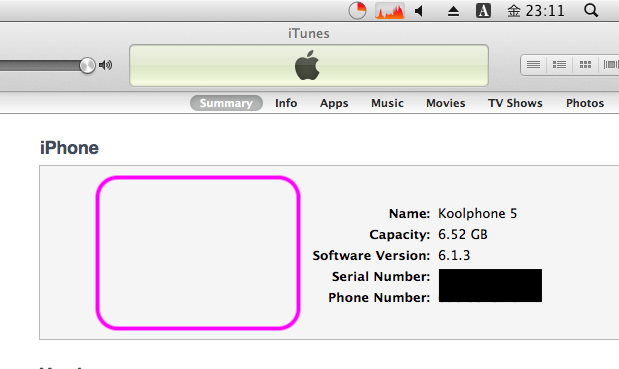
I want to get the correct artwork showing for the iPhone model in iTunes but right now it shows a blank. I tried manually installing the artwork files from iTunes 10.7 but that did not work (it also did not break anything). After doing some digging in Hopper, it looks like iTunes has a huge function that was probably code-generated where it selects the images. I tried for a bit to get it working, but I had to stop as it’s a low priority.
But maybe one of these days…